
Views UI
Views UI is the Drupal core module with the admin screens where site builders create, edit and preview views, the configurable lists of content on a site.

Views UI is the core Drupal module that provides the administration screens for building views in the browser. A view is a saved query plus a way to display the result, such as a list of articles. In Views UI you choose the content, add filters and sorting, pick a format and check the outcome in a live preview before you save.
How Views UI works in Drupal 11
Views UI is a separate core module. Its info file describes it as providing a user interface for creating and managing views, and it depends on the Views module. The reverse is not true: the Views info file requires only the Filter module. The Drupal User Guide notes that both modules come with the Standard installation profile.
The overview page is /admin/structure/views, and the add wizard is /admin/structure/views/add. Opening the overview requires the administer views permission, which Drupal declares with restrict access: true. The same permission is the admin permission of the View configuration entity.
A view is a configuration entity of type view. Its exported data holds the ID, label, module, description, tag, base table, base field and the displays. Saving in Views UI therefore writes configuration. The Drupal documentation on configuration management names a newly created view as an example of an item you can copy to another environment.
On the edit screen of a view, the Advanced column holds items such as relationships. Two settings pages shape the editor itself, both stored in views.settings. The basic page includes the live preview settings, such as automatic updates on changes, the SQL query and performance statistics. The advanced page has a button to clear the Views cache and an option to add a Views signature to every SQL query.
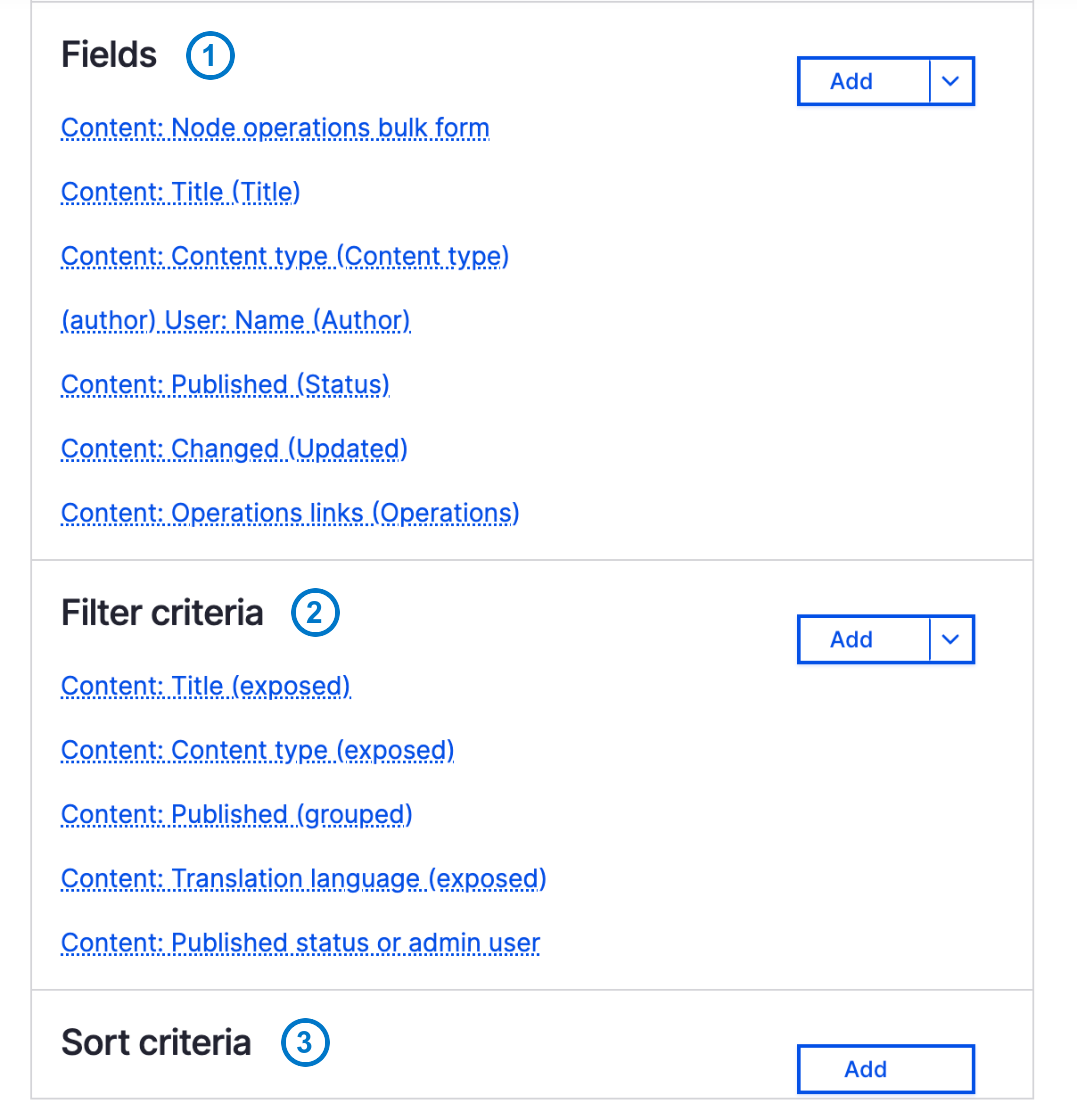
The Content view in the Views editor, shown in the Gin administration theme: (1) Fields are the columns, (2) Filter criteria decide which content appears, (3) Sort criteria set the order. This view has none: its table format sorts by Updated, newest first, until you click another column heading.
Example
The User Guide builds a Vendors page. Go to Structure › Views › Add view, name the view Vendors, show content of type Vendor sorted by title, and create a page at the path vendors with a table format and a menu link. Click Save and edit. Add the Main image and Body fields, rearrange them, check the preview and click Save.
Common mistakes
- Handing out the permission.
administer viewsgives access to the administration of every view on the site. Give it to the roles that build lists, not to every editor. - Leaving the SQL signature on. The option marks every Views query with the view and display name. Its own description says to use it only when troubleshooting.
- Editing on the live site and forgetting the export. A saved view is configuration, so a change made in one environment stays there until you export and import it.
For marketing and content teams
When someone asks for a new list, a different sort order or one more filter, the change is made in Views UI. Name the page, the content you want and the order, and ask whoever holds the administer views permission to make the change.
With DXPR
You build and tune the list in Views UI, then place it on a page with DXPR Builder. The layout around the list is edited visually; the list itself stays a normal Drupal view. See DXPR Builder.
Sources
- Drupal core: views_ui.info.yml
- Drupal core: views.info.yml
- Drupal core: views_ui.permissions.yml
- Drupal core: BasicSettingsForm.php (Views UI)
- Drupal core: AdvancedSettingsForm.php (Views UI)
- Drupal core: View.php configuration entity
- Drupal User Guide: Creating a content list view
- Drupal.org documentation: Add a relationship to a view
- Drupal.org documentation: Managing your site's configuration