
Drupal 11 Layout Builder tutorial: sections, blocks and overrides
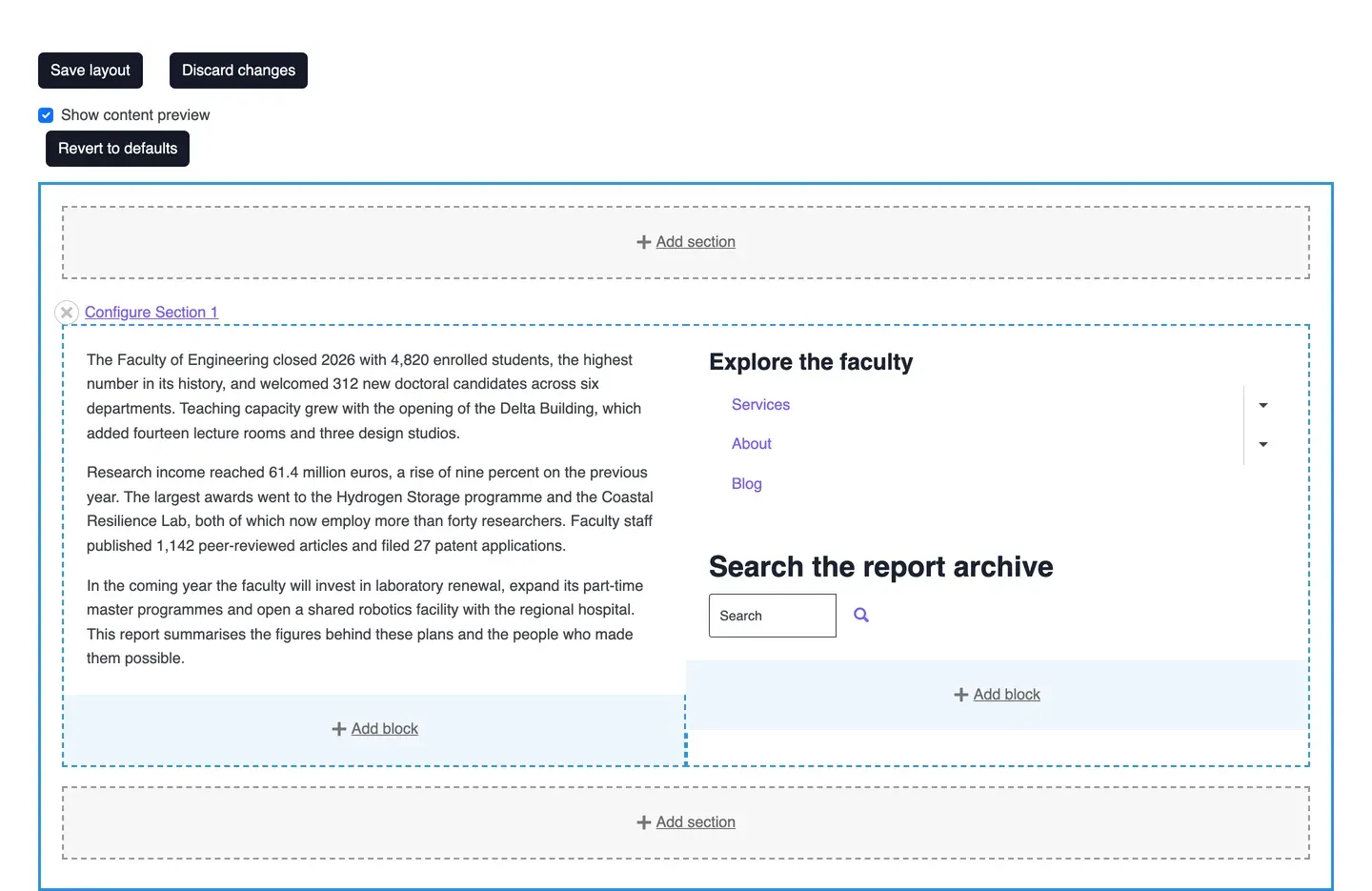
Layout Builder is Drupal's own page layout tool. It ships with Drupal 11 core, it works on any content type, and it lets a site builder define a default layout once while editors adjust the layout of a single page when they need to. This tutorial walks through it on Drupal 11.4: enabling the module, giving a content type a layout, adding sections and blocks, saving the default, overriding it on one page, and the two contributed modules that make it workable for editorial teams.
Every screenshot was taken on a Drupal 11.4 site in October 2026, with Claro as the administration theme and DXPR Theme on the front end. Layout Builder opens in the front-end theme, so on your site its buttons and tray may look slightly different.
In short: enable Layout Builder on the Extend page, tick Use Layout Builder under a content type's Manage display, then build the default layout from sections and blocks. Allow overrides if editors may change the layout of a single page, and add Layout Builder Restrictions to limit what they can pick.
Layout Builder gives you the frame; AI can fill the page. Layout Builder arranges blocks in regions, but it does not write the headline, the feature cards or the Dutch version. DXPR Builder runs as a formatter on a text field, so it sits inside a Layout Builder section like any other block, and there an editor turns a brief into an editable draft and refines it visually. Use Layout Builder and DXPR Builder together.
1. Enable Layout Builder
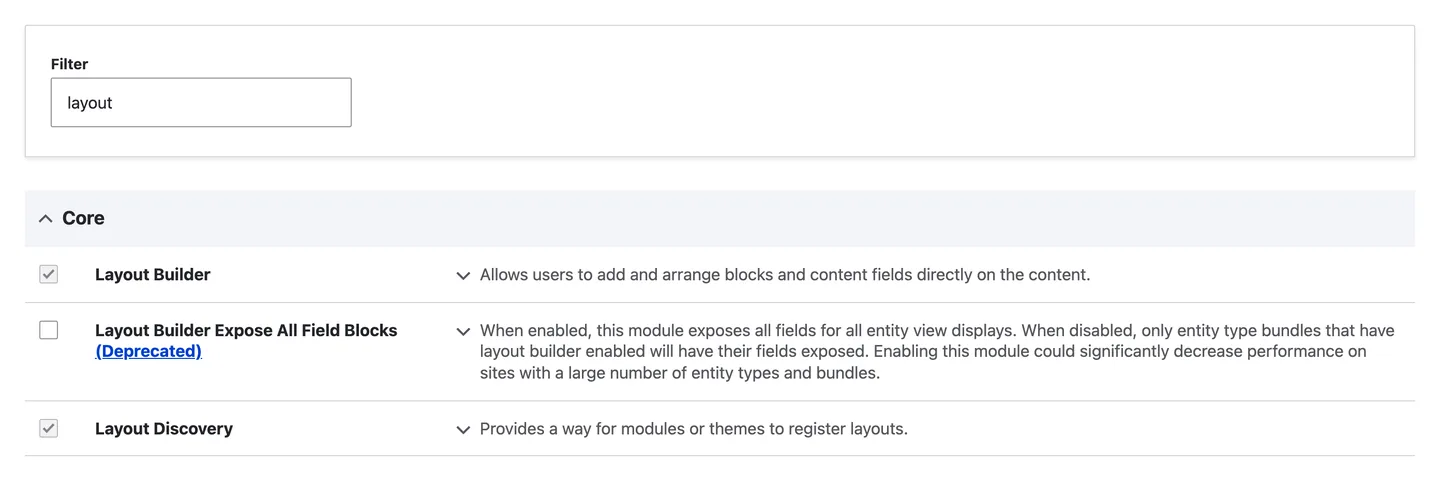
Go to Extend (/admin/modules), filter on "layout", tick Layout Builder and press Install. Drupal enables Layout Discovery with it: the module through which core, contributed modules and themes register layouts. From the command line, drush en layout_builder does the same.
Leave Layout Builder Expose All Field Blocks switched off. It is deprecated, and it offers every field of every entity type as a block, which slows down sites with many content types.
2. Turn it on for a content type
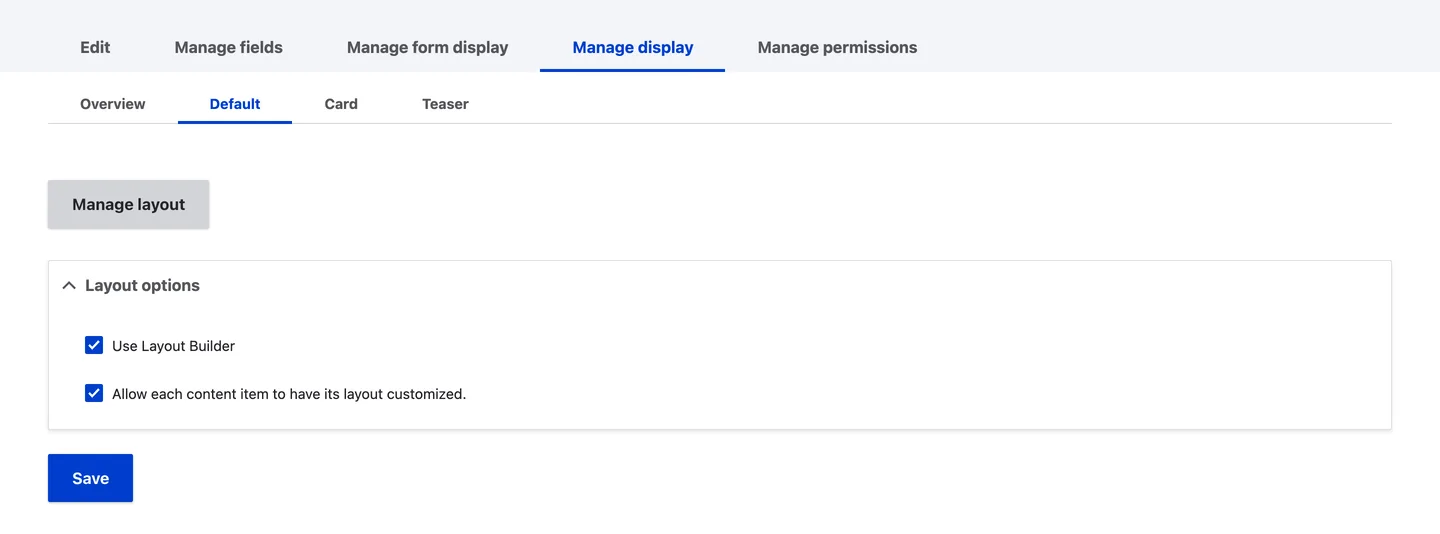
Open Structure, Content types, your content type, Manage display, and pick the view mode; Default covers full pages. Under Layout options, tick Use Layout Builder. Tick Allow each content item to have its layout customized as well if editors may change the layout of a single page; leave it off for content types that must stay uniform. Overrides are only offered on the Default or Full content display.
After saving, the field table disappears: from now on the display is a layout, and the Manage layout button opens it.
3. Open the default layout
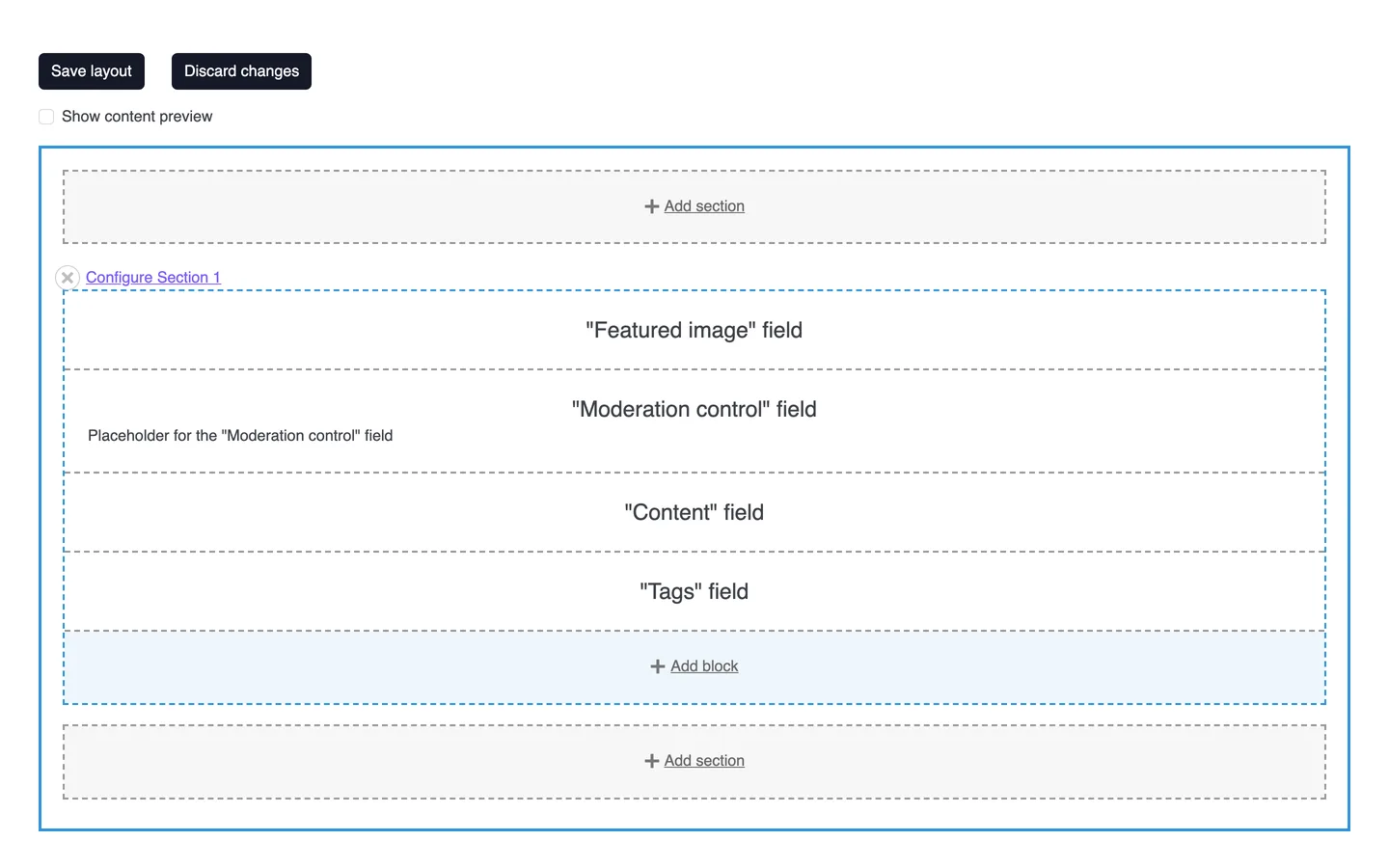
Manage layout opens the layout that every page of this content type shares. Drupal starts it with one section holding the fields that were visible on the display, each as a block: here Featured image, Moderation control, Content and Tags. With Show content preview off, blocks show their labels instead of sample content, which makes them easier to arrange.
The editor opens in your front-end theme, so its buttons take the theme's look. Nothing is stored until you press Save layout; Discard changes throws the draft away.
4. Add a section and choose its layout
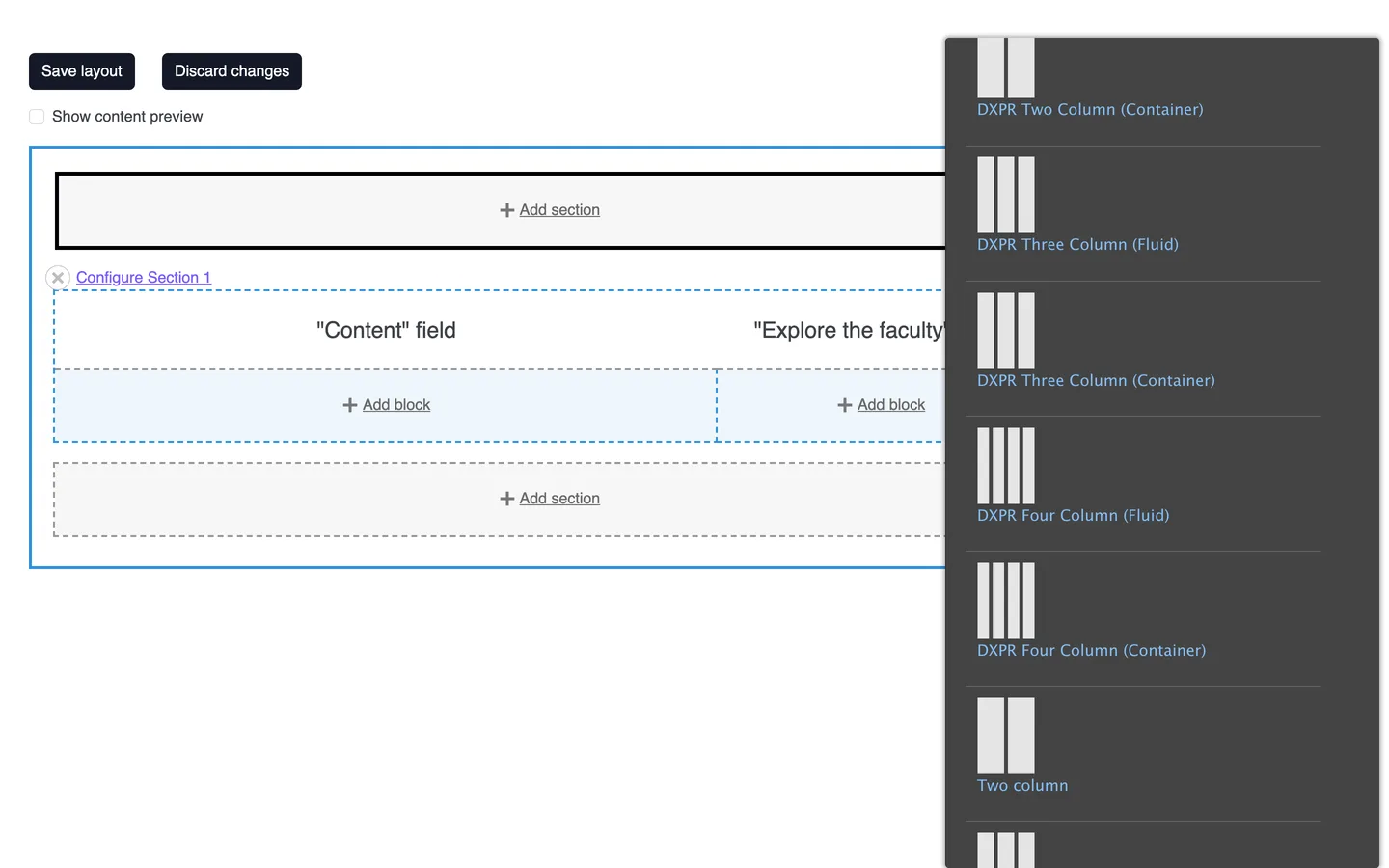
Click Add section above or below an existing section. The tray on the right lists every layout registered on the site: core's one, two, three and four column layouts, plus the layouts your theme and modules add. The DXPR layouts in this screenshot, in fluid and container widths, come from the DXPR CMS Layouts module.
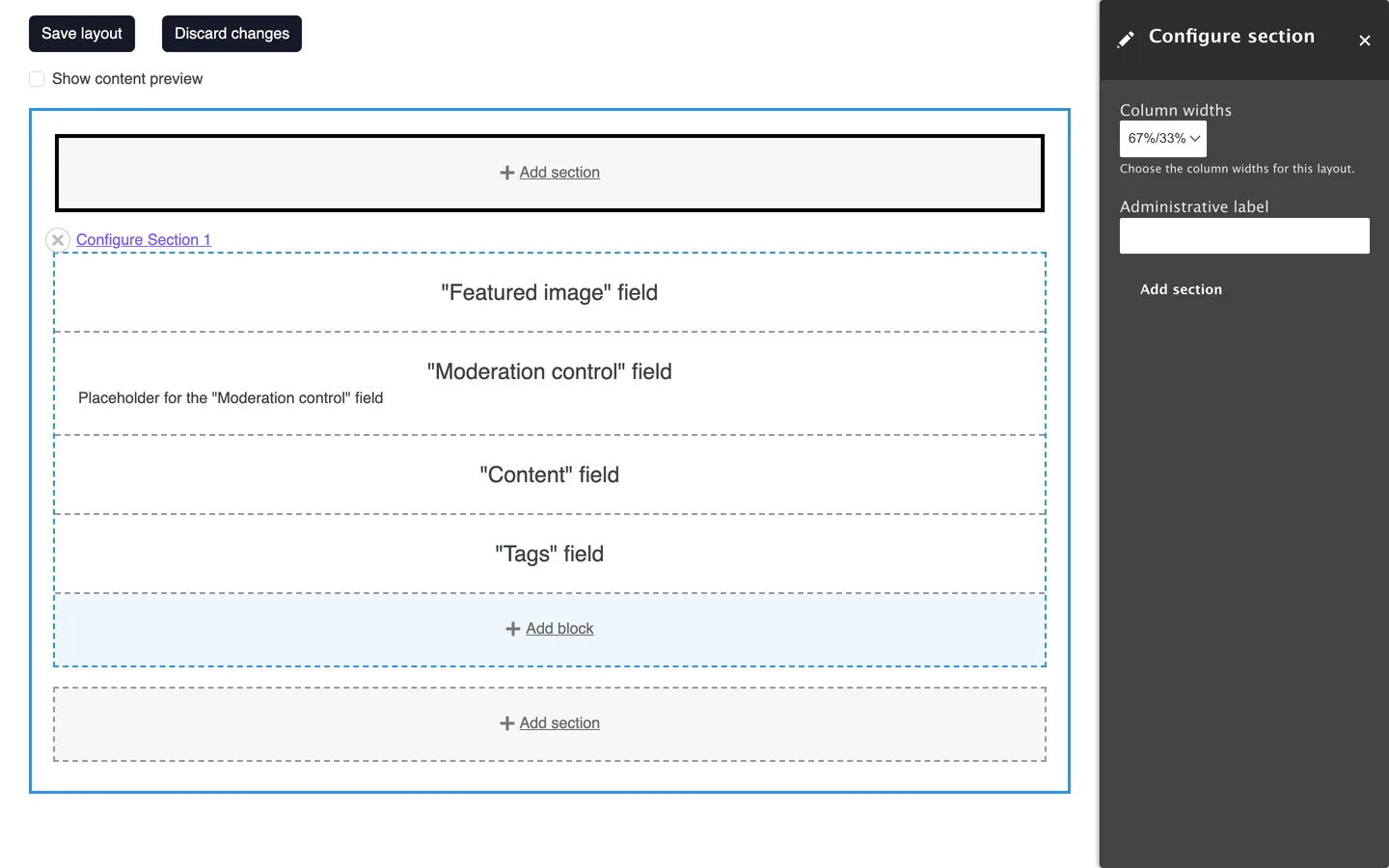
Pick a layout, and Configure section asks for its settings. For core's two column layout these are the column widths (50/50, 33/67, 67/33, 25/75 or 75/25) and an optional administrative label that only site builders see. Press Add section.
5. Add blocks to the regions
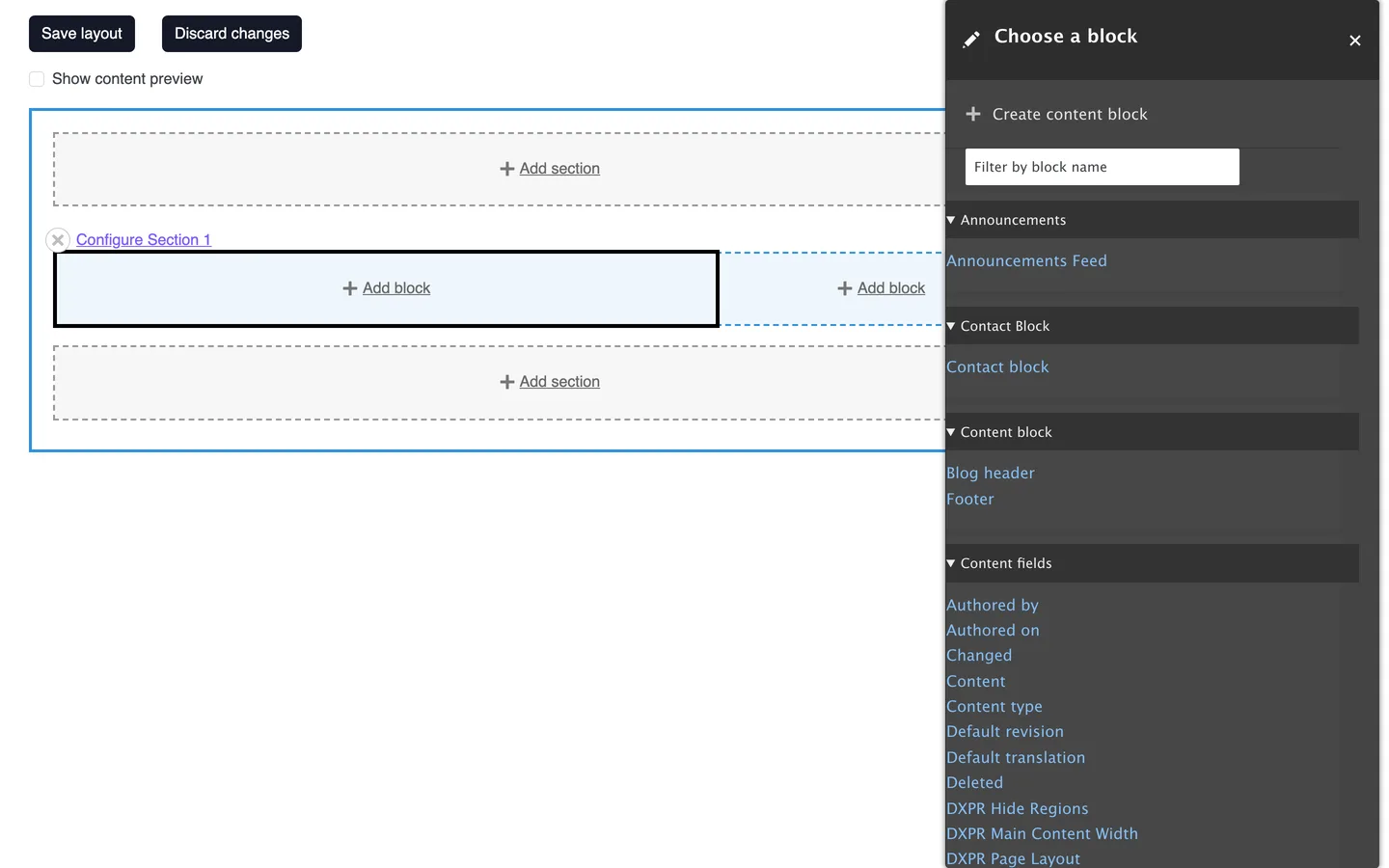
Every region of a section has an Add block link. The Choose a block tray lists the fields of the content type under Content fields, then the blocks of every module: menus, views, forms and custom blocks. Create content block at the top makes a one-off inline block that belongs to this layout. Type in Filter by block name instead of scrolling.
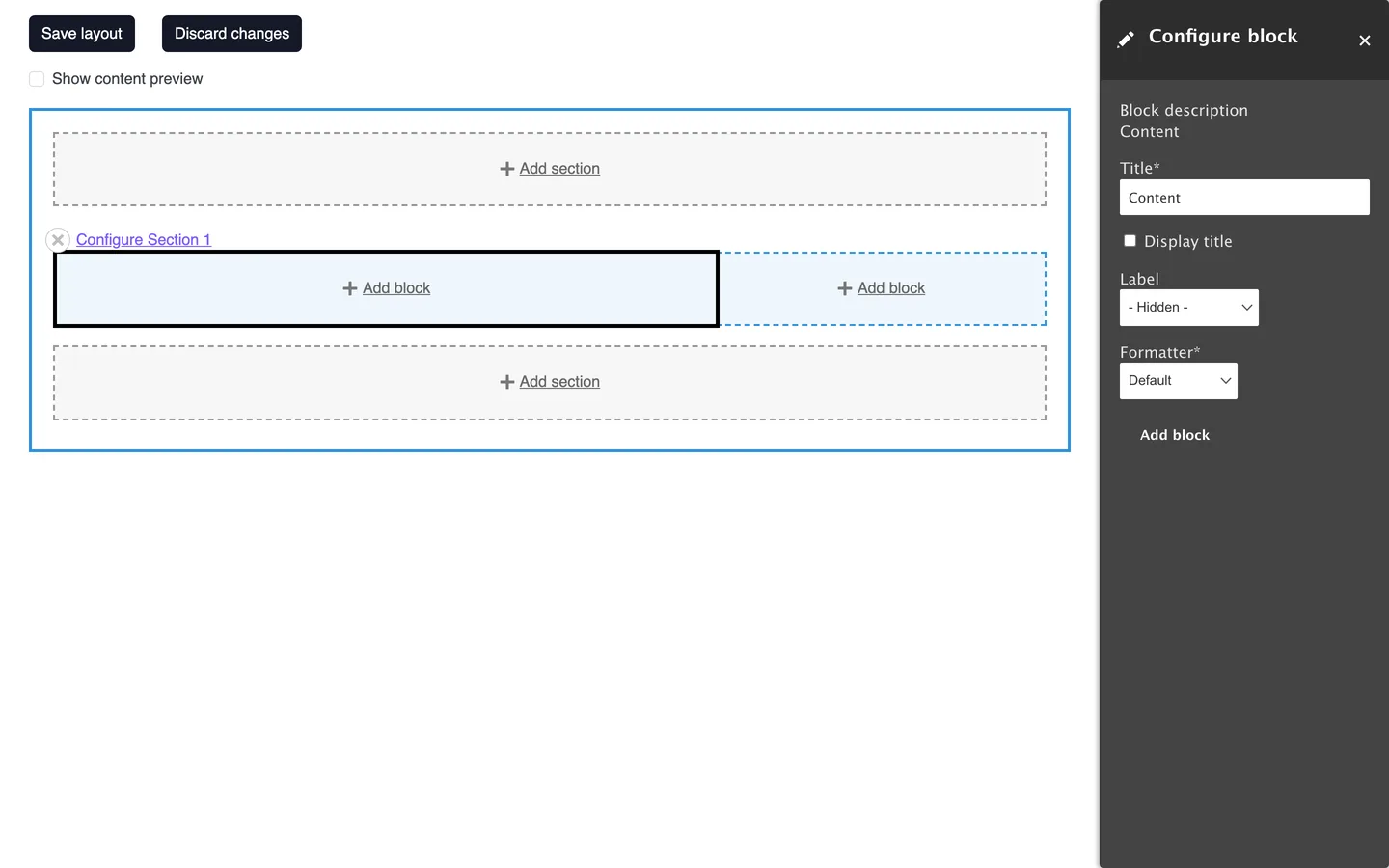
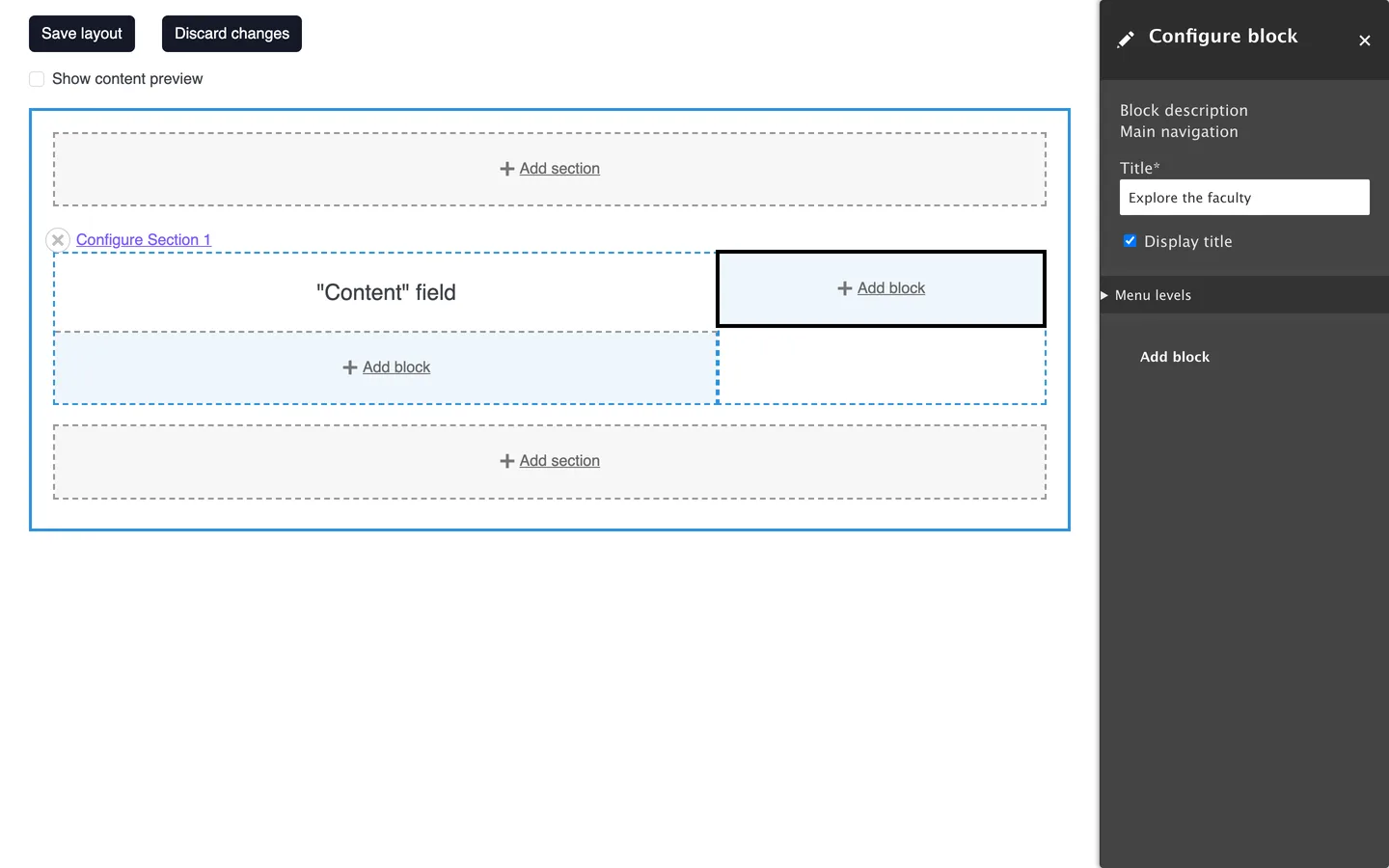
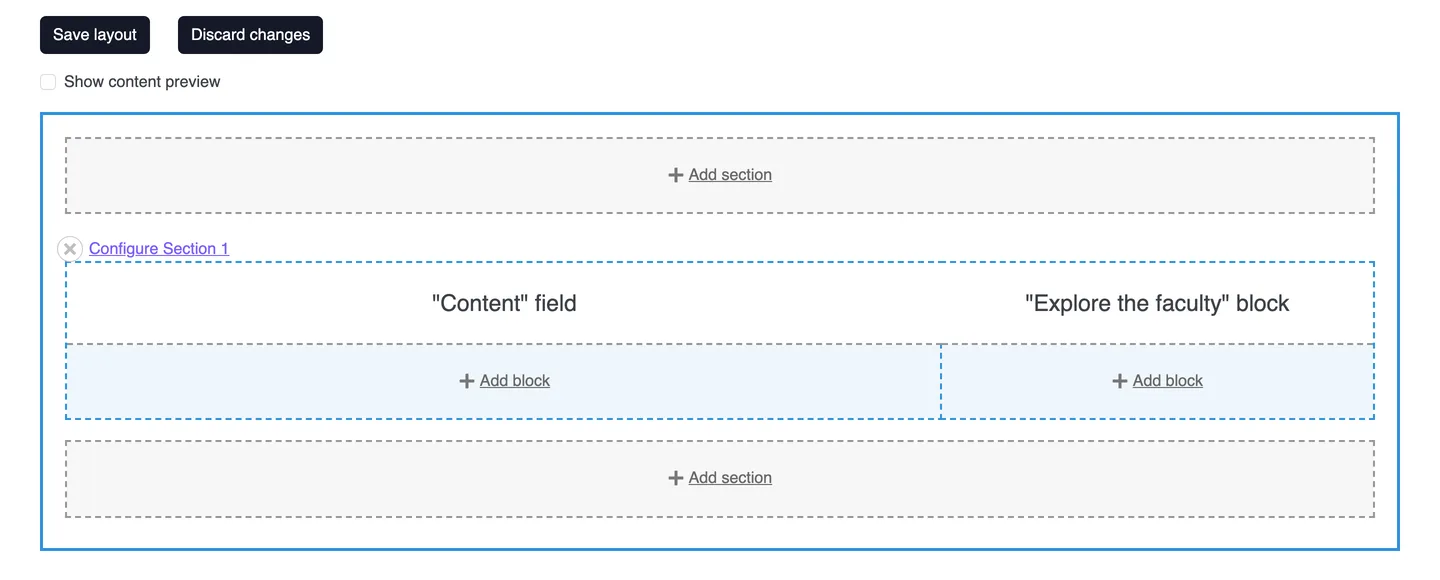
Each block has a short configuration form. A field block asks for the label position and the formatter; most other blocks ask for a title you can show or hide. In this example the Content field goes in the wide column with its label hidden, and the Main navigation menu goes in the narrow column with the title "Explore the faculty". Blocks can also be dragged between regions, so you can move the field blocks of the old one-column section into the new one instead of adding them again.
When every block you need has a place, remove the old one-column section with the cross next to its Configure Section link, and press Save layout. Every page of the content type now uses this layout.

6. Override the layout of one page
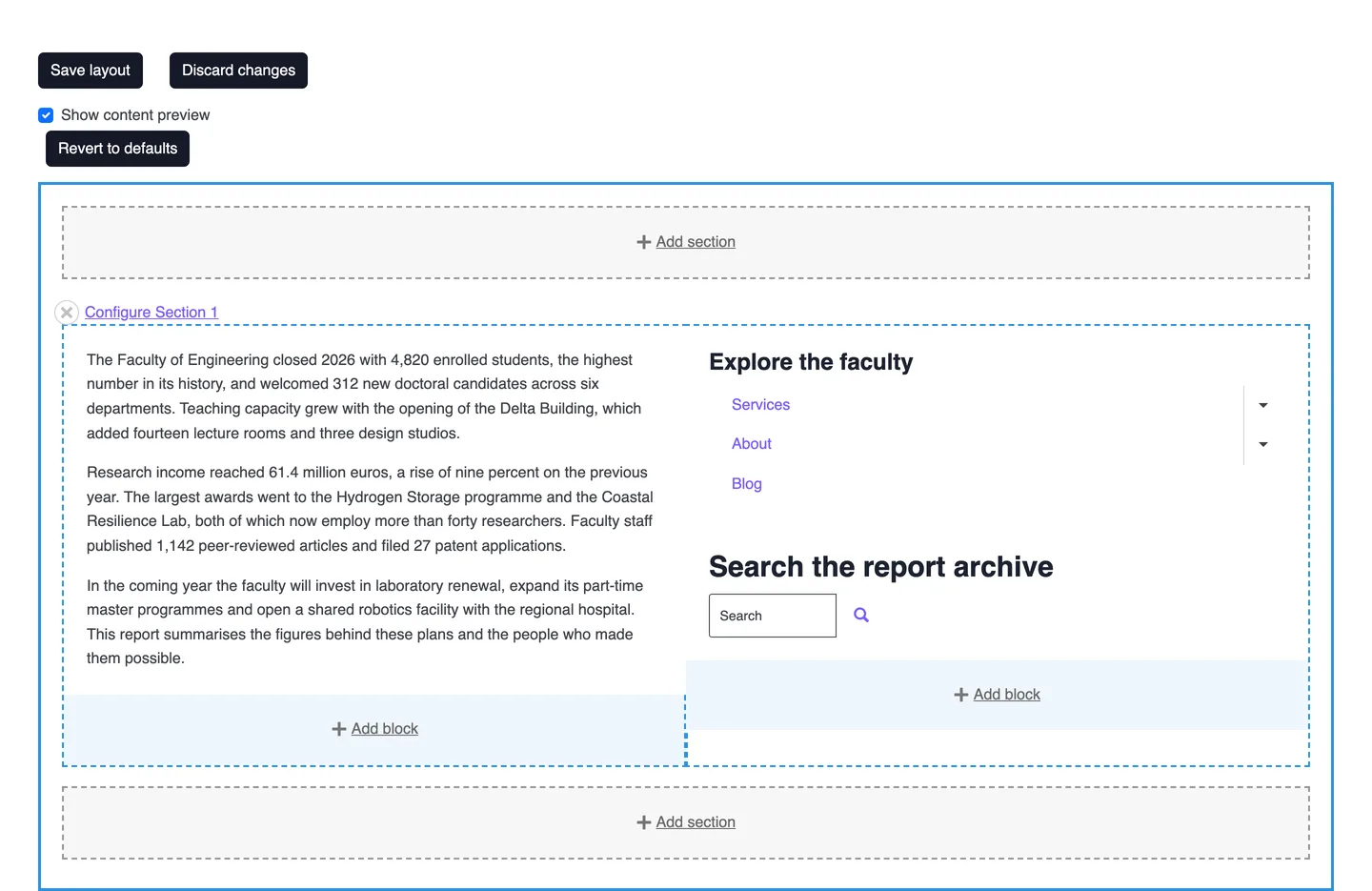
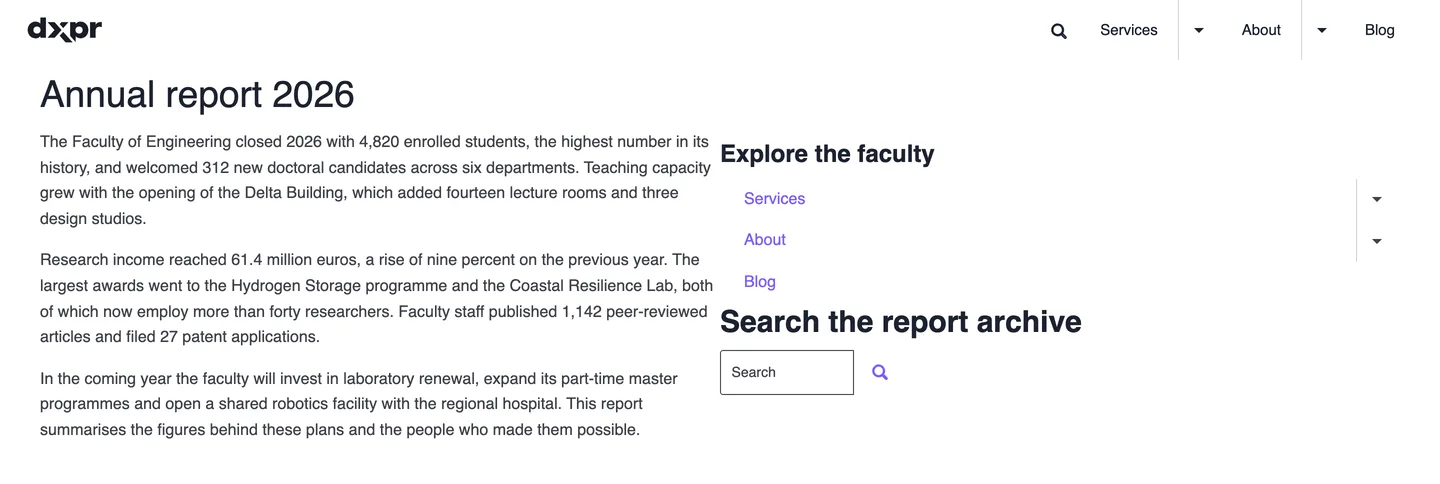
When the content type allows overrides, every page gets a Layout tab next to View and Edit. It opens the same editor for that page only, with a Revert to defaults button above the layout. Here the annual report gets an extra Search block under the menu; every other page of the content type keeps the default layout.
From that moment the page has its own copy of the layout. Later changes to the default no longer reach it, until someone presses Revert to defaults.
7. Two contributed modules every editorial team ends up installing
Core Layout Builder offers every layout and every block to every editor, which is more freedom than most teams want. Two contributed modules close the gap:
- Layout Builder Restrictions limits which layouts and which blocks are available per content type and per region, so an editor picks from the handful of options that fit the design. Its options appear under the content type's Manage display.
- Layout Builder Styles lets a site builder define named styles, such as a background, a spacing variant or a width, under Configuration, Content authoring, Layout builder styles. Editors then pick them in the section and block forms instead of typing CSS classes.
Both have Drupal 11 releases; install them with Composer and enable them on the Extend page.
8. Things to know before you roll it out
- Overrides are stored on the page. Once a page has its own layout, changes to the default no longer reach it until someone presses Revert to defaults. Decide early which content types allow overrides.
- Inline blocks live in the layout. A block created inside Layout Builder belongs to that layout and is not reusable elsewhere; use a block from the block library when several pages need it.
- Permissions. Overrides have permissions per content type, for example Content - Article: Configure layout overrides for content items that the user can edit, or the wider Content - Article: Configure all layout overrides. Editors also need Create and edit content blocks for inline blocks. Configure any layout also covers the default layouts, so keep it for site builders.
- Revisions and moderation. Override layouts are stored in the page's revision, so content moderation applies to them as to any other field; editors can save a draft layout and publish it later.
- Themes. Layout Builder offers the layouts registered by core, your theme and your modules. Core's layouts bring their own CSS and work in any theme; modules such as DXPR CMS Layouts add Bootstrap 5 layouts in fluid and container widths.
Questions about Layout Builder
Fill your layouts with AI.
Keep Layout Builder for the page frame and let editors build the content inside it from a brief, visually and in every language. Try it in the live demo, no installation needed.