
You edit DXPR Builder pages right on the live site. Hover to reveal controls, drag elements into place and type straight into the text. The table points you to the page for what you want to do. The sections below it describe the toolbar and control bars that every editing page uses.
| I want to ... | Use | Needs |
|---|---|---|
| add an element to the page | Find and add an element | a section or column to put it in |
| move an element, row or section | Drag elements into place | a mouse, or the keyboard shortcuts |
| reach the column, row or section around an element | Reach the part of the page you want to edit | nothing |
| change the wording or formatting of text | Edit text on the page | a Text, Alert or Block quote element |
| move or delete an element from a menu | Use the element More menu | nothing |
| repeat a section or element right after itself | Duplicate an element with Clone | the same page; a template for other pages |
| repeat an element elsewhere on the same page | Copy and paste elements | the same page; a template for other pages |
| take back a change | Undo and redo | nothing |
| check the page as visitors will see it | See your page as visitors do | nothing |
| store my changes and publish the page | Save and publish your page | permission to edit the content |
| edit from a phone or tablet | Mobile editing | a touch screen |
Which should I use
The element picker and drag and drop place everything on the page. Type words straight into the text; change everything else about an element in its settings, under More > Settings.
When a page repeats itself, clone when the copy belongs right after the original, such as a second programme day. Copy and paste when it goes somewhere else on the page. When other pages need the same block, save it as a template instead. Check the page in Preview before you save. Click Save before you leave: closing the page drops unsaved changes after a warning.
The DXPR toolbar
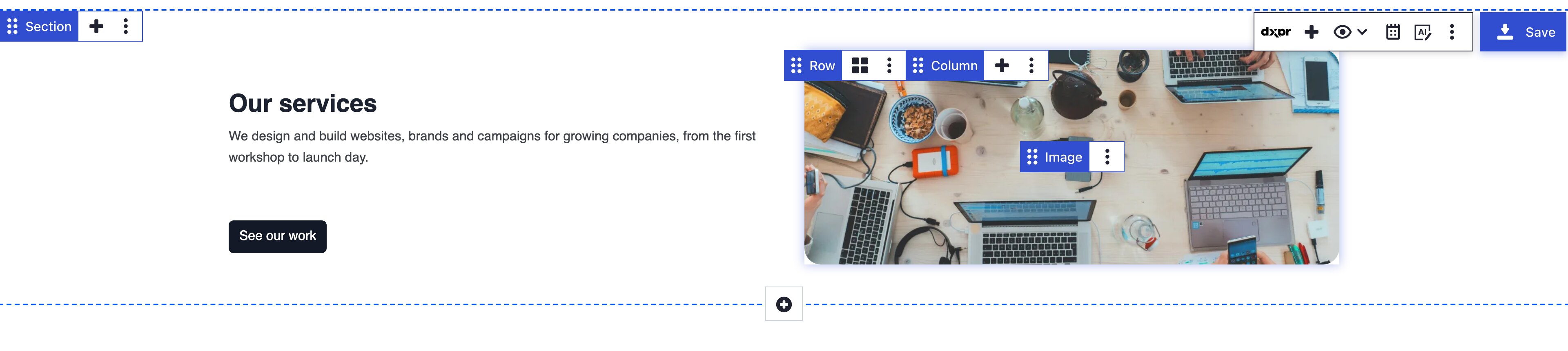
Each DXPR Builder area on the page has a toolbar at its top right. It starts with Add (the plus), the View mode menu (the eye icon) and Show history. Then come AI Agent when AI is set up, More and Save.
The toolbar's More menu adds Layers panel, Save as template, Editor settings, Keyboard shortcuts and links to help.
View modes
The eye icon opens the view mode menu. The builder remembers your last choice the next time you open a page.
| Mode | What you see |
|---|---|
| Edit | The page with control bars on hover |
| Preview | The page as visitors see it, without controls |
| Power user | Every control bar at once, each with the element's ID |
| Layers | The page as a tree of sections, rows, columns and elements |
Control bars
Hover any part of the page to show its control bar. It holds a drag handle with the element's name, a plus on sections and columns, and More with Settings, Copy, Clone, Delete and other actions.
A page is built from sections. Sections hold rows or elements, rows hold columns, and columns hold elements such as Text, Image or Button.
Before you start
- Your role needs the Edit with DXPR Builder permission and permission to edit the content item. See Set up editor permissions.
What's next?
- Find and add an element: start building with the element picker.
- Keyboard shortcuts: every shortcut the editor knows.